Add a daily motivation widget to your iPhone or Android Home Screen, pick its size, topics, theme and refresh rate, and show like and share buttons.
November 5, 2026
·
3 min
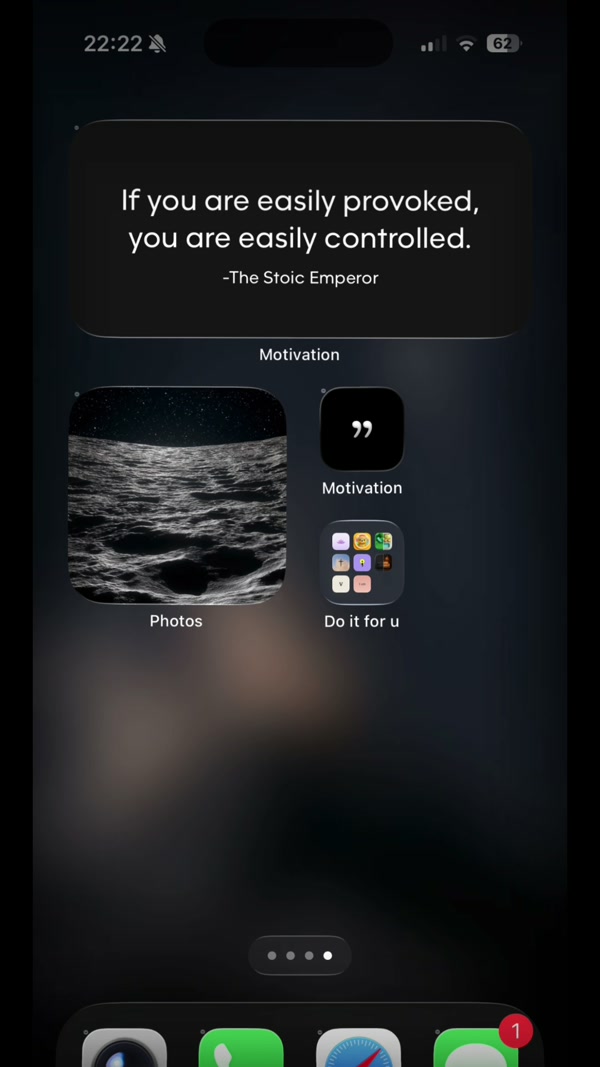
To add a daily motivation widget, press and hold an empty spot on your Home Screen, tap the + button on iPhone (or Widgets on Android), choose Motivation and place the size you want. The quote changes on its own, and you can choose the topics and the look from the app.
This guide covers the steps on both platforms, what each size does, and the settings that make the widget yours. You need the free Motivation app, opened once.
Which widget size should you pick?
Motivation widgets come in small, medium and large. Small suits one short line beside your apps; medium has room for a full quote; large gives a longer quote space to breathe. You can add as many widgets as you like, for example a small one for a short line and a large one with another topic.
Only medium and large widgets can show like and share buttons, which let you save a quote or send it without opening the app. Small widgets have no buttons.
What can you customize?
In the app, open your profile and tap Widget settings. For each widget you can set a theme, a name (useful when you have several), text size, refresh frequency, category, whether buttons show, and an optional border. Basic customization is free; themes, borders and refresh frequency presets are part of Premium.
How to add a daily motivation widget, step by step
1. Install Motivation and open it once
The widget needs the app to have been opened once after installing, so it can load its quotes.
2. Press and hold an empty part of the Home Screen
On iPhone, tap the + in the top corner once the icons start to jiggle. On Android, tap Widgets in the menu that appears.
3. Find Motivation in the list
Scroll the list or search for Motivation, then swipe through the available sizes.
4. Add the size you want
On iPhone tap Add Widget. On Android press and hold the size and drop it on a page. Drag it to where you want it and tap Done or an empty spot.
5. Open Widget settings and choose a category
In Motivation tap your profile, then Widget settings, and select the widget. Pick a category, for example confidence, gratitude or focus, to decide which quotes appear.
6. Choose a theme and text size
Pick a theme that reads well on your wallpaper and set the text size. If you plan several widgets, give each one a name.
7. Turn on like and share buttons
Switch on Show buttons for a medium or large widget to save and share quotes straight from the Home Screen.
8. Set how often the quote changes
Choose a refresh frequency from Never to Very frequently. Once a day suits a slower, reflective start; the quicker presets keep it fresh.
Frequently asked questions
Why is Motivation missing from my widget list?
Check the app finished installing, open it once, then reopen the widget gallery. If it is still missing, restart your phone.
Can I have more than one Motivation widget?
Yes. You can add as many as you like and give each its own category, theme and name.
Why do my like and share buttons not show?
Small widgets do not have buttons. Use a medium or large widget and turn on Show buttons in Widget settings.
Is the Home Screen widget free?
Yes, with basic customization. Premium adds per-widget themes, borders, refresh frequency presets, and every category.