Add a Motivation widget to your iPhone Lock Screen, choose categories and refresh rate, and see why Android needs a Home Screen widget plus reminders instead.
November 5, 2026
·
3 min
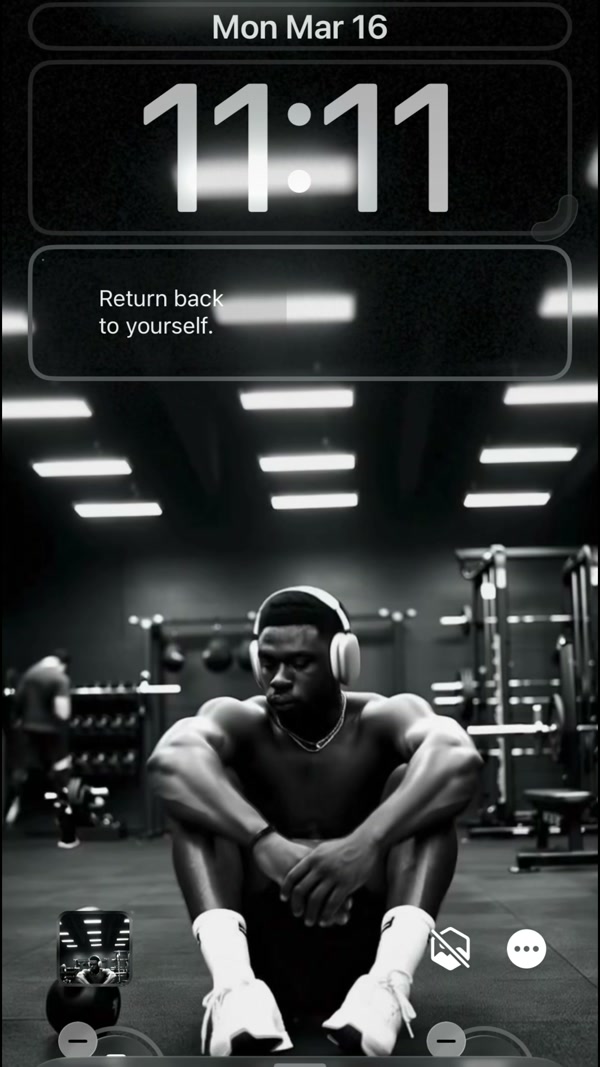
To put a motivational quote on your iPhone Lock Screen, press and hold the Lock Screen, tap Customize, tap the area under the clock, and add the Motivation widget. A new quote then shows every time you wake your phone. Lock Screen widgets need iOS 16 or later.
This guide walks through the steps, how to set the topics and how often the quote changes, and what to do on Android, which has no Lock Screen widgets. You need the free Motivation app, opened once.
Which Lock Screen widget format should you choose?
Motivation offers two kinds of Lock Screen widget. The rectangular widget has the most room for text, so it suits a full quote. The circular and line formats are compact, and are better for a very short line next to the date or the clock.
The Lock Screen uses short quotes so that they fit. In the app you choose which categories the widget draws from, such as confidence, discipline or calm, and pick a font. Only one Lock Screen widget setup is supported at a time, so choose the categories you want to see most.
Can you put motivational quotes on an Android Lock Screen?
Not as a widget. Android has no native Lock Screen widget system, so the Motivation app places its widget on the Home Screen instead. If you see a Lock Screen widget card inside the app on Android, it is a shortcut that prompts you to add the Home Screen widget, and it disappears once you have added one.
For quotes you see before unlocking, use reminders: Android shows notifications on the Lock Screen. The Home Screen widget guide covers the Home Screen widget, and the daily notification guide covers reminders.
How to add a motivational quote widget to your iPhone Lock Screen, step by step
1. Install Motivation and open it once
Open the app after installing so it can prepare the quotes the widget shows. Then lock your iPhone.
2. Press and hold the Lock Screen
Wake the phone, unlock it with Face ID or Touch ID without swiping away, and press and hold the Lock Screen until the wallpaper gallery appears. Tap Customize, then choose Lock Screen.
3. Tap the area below the clock
Tap the box under the time to open the widget gallery. Use the box above the time for a short line next to the date.
4. Choose Motivation in the widget list
Scroll the list or search for Motivation, then tap or drag the rectangular widget for the most text, or a compact one for a short line.
5. Tap Done to save the Lock Screen
Tap Done in the top corner. The widget now shows a quote each time you wake the phone.
6. Choose categories, font and refresh rate in the app
In Motivation open your profile and tap Widget settings, then pick the Lock Screen widget. Choose the categories and font. Refresh presets run from Never through Twice a day, Occasionally, Frequently and Very frequently. Changing the refresh frequency is part of Premium.
7. Tap the widget to open the full quote
Tapping the Lock Screen widget opens the app on that quote, where you can save it to favorites or share it as an image.
Frequently asked questions
Why is Motivation missing from my Lock Screen widget list?
Open the app once after installing, then go back and reopen the widget gallery. Lock Screen widgets also need iOS 16 or later, so check your version in Settings, General, Software Update.
Can I put motivational quotes on my Lock Screen on Android?
Not as a widget, because Android does not support them. Use a Home Screen widget plus a daily reminder; the reminder shows on the Lock Screen as a notification.
How often does the Lock Screen quote change?
It follows the refresh preset you choose in Widget settings, from Never up to Very frequently. iOS decides the exact moment each update shows, so changes can arrive a little later than scheduled.
Is the Lock Screen widget free?
Yes, widgets with basic customization are free. Premium adds themes, borders, refresh frequency presets and every category.