Set up daily motivational quote reminders: allow notifications, choose times and topics, and keep them reliable on iPhone and Android.
November 5, 2026
·
3 min
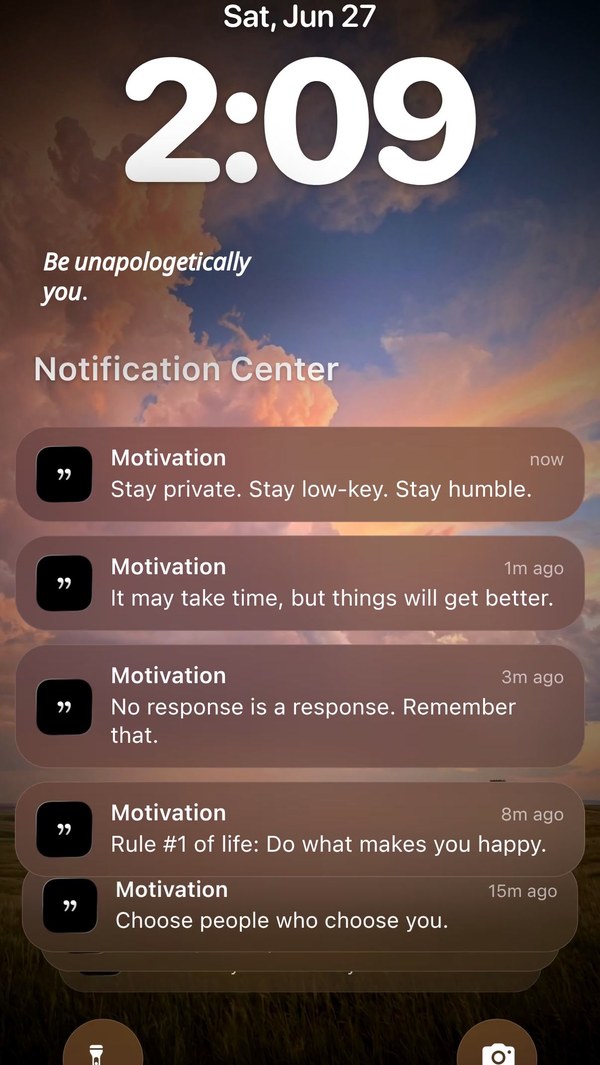
To get a motivational quote every day, open the Motivation app, tap your profile, tap Reminders, add a reminder and choose the time you want it. The quote arrives as a notification and waits on your Lock Screen until you pick up the phone.
This guide covers allowing notifications, choosing times and topics, what the free app includes, and the Android battery setting that keeps reminders reliable. You need the free Motivation app.
How do Motivation reminders work?
A reminder is a notification at a time you choose. The app schedules it on your phone, so reminders arrive even when the app is closed. You can set several, for example a morning push and an evening reset, and choose which topics each one draws from.
Reminder text is shortened to fit a notification, and tapping it opens the full quote. Free users get a shorter preview that ends at a hook word; Premium shows much more of the quote.
Widget or reminder: which is better?
Reminders reach you at set moments, which suits a daily habit. A widget is always visible, which suits glancing. Many people use both: a Home Screen widget for the background and one reminder for the moment they start the day. See the Home Screen widget guide for the widget setup.
How to set up daily motivational quote reminders, step by step
1. Install Motivation and allow notifications
When the app asks, tap Allow. If you declined, turn notifications on in your phone settings for Motivation.
2. Open Reminders from your profile
In the app tap your profile, then Reminders, to see the reminders that are already set up.
3. Add a reminder
Tap Add reminder and pick the time to start. Choose a moment you are already on your phone, such as when you wake up or before your commute.
4. Choose how often it repeats
Set the days and the number of quotes per day. One a day builds a habit; more keeps motivation in view throughout the day.
5. Pick the topics you want
Choose the categories each reminder draws from, so a morning reminder can be about focus and an evening one about calm.
6. Check the Lock Screen
Lock your phone and wait for the next reminder to arrive, or look at the next scheduled one. Press and hold a notification for quick actions such as favorite or share.
7. On Android, turn off battery optimization for Motivation
Android can pause apps to save power, which stops reminders. In your phone settings exclude Motivation from battery optimization so reminders arrive on time.
Frequently asked questions
Why am I not getting my motivation notifications?
First check notifications are allowed for Motivation in your phone settings. On Android, also turn off battery optimization for the app, and on iPhone check that a Focus mode is not silencing it.
How many reminders can I set?
You can set several at different times. The free app includes basic reminders, and Premium adds more reminder options.
Can I get a quote on my Lock Screen without a widget?
Yes. A reminder shows on the Lock Screen as a notification, on both iPhone and Android.
Are reminders free?
Basic reminders are free. Premium adds more reminder options and longer quote previews in each notification.